




Adobe InDesign is one of the most widely used tools for professional book, magazine, card deck, marketing material, and packaging design. When preparing your document for printing, adding bleed ensures that your artwork or background colors extend beyond the edge of the page, so you don’t end up with unwanted white borders after trimming.
In this article, we will provide a step-by-step guide on how to set up bleed correctly in InDesign before exporting your final print file.
Why recommend Adding Bleed with InDesign?
Adding bleed in Adobe InDesign is highly recommended because it ensures your printed design looks clean and professional — with no unwanted white edges after trimming.
Here’s why it matters:
-
Compensates for Cutting Tolerance: During the trimming process, even the most precise machines can shift slightly (usually by 1–3 mm). If your artwork stops exactly at the trim line, a small misalignment can cause thin white borders. Bleed extends your artwork beyond the trim area, preventing that.
-
Gives Full-Edge Color or Images: If your design includes backgrounds, photos, or graphics that reach the page edge, bleed ensures they print seamlessly to the edge of the paper after trimming.
-
Required by Most Printers: Professional printers — including BookPrintingChina — typically require 3 mm (or 0.125 inch) bleed on all sides for accurate production.
-
Saves Time and Cost: Without bleed, your file may be rejected by the printer or require manual fixes, delaying production and adding extra cost.
Step 1: Launch Adobe InDesign and Create a New Document
Open InDesign, then go to File > New > Document or click “New File”. A new window will appear with several setup options.
Step 2: Set the Page Size and Orientation
On the Preset Details panel (on the right side of the screen):
-
Enter your “width” and “height” according to your project’s trim size (for example, 8.5 x 11 inches for a standard novel).
-
Change the Units from “Picas” or “Millimeters” to inches for easier measurement.
-
Choose your page orientation: Portrait (vertical) or Landscape (horizontal).
-
Input the number of pages you’ll need.
-
If your project includes left and right pages (like a book or magazine), tick “Facing Pages.”
Step 3: Set Up Bleed and Slug
Scroll down to the “Bleed and Slug” section at the bottom of the New Document window. Here’s what to do:
-
Under the “Bleed” fields, change the “Top“ value to “0.125 in“ (which equals 3mm).
-
Click the chain link icon to apply the same measurement to all sides (Top, Bottom, Inside, and Outside).
-
You can leave the “Slug” fields blank unless your printer specifically requests slug information (for notes or file references).
Tip: Most commercial printers, for example, we at BookPrintingChina, recommend a 0.125-inch (3mm) bleed on all sides.
When done, click “Create” to open your new document.
Step 4: Add Your Artwork or Layout
Now you’re ready to design.
-
Go to File > Place, select your artwork or image, and click “Open”. Or drag your artwork from your computer folder into the InDesign page.
-
Position your artwork on the page.
-
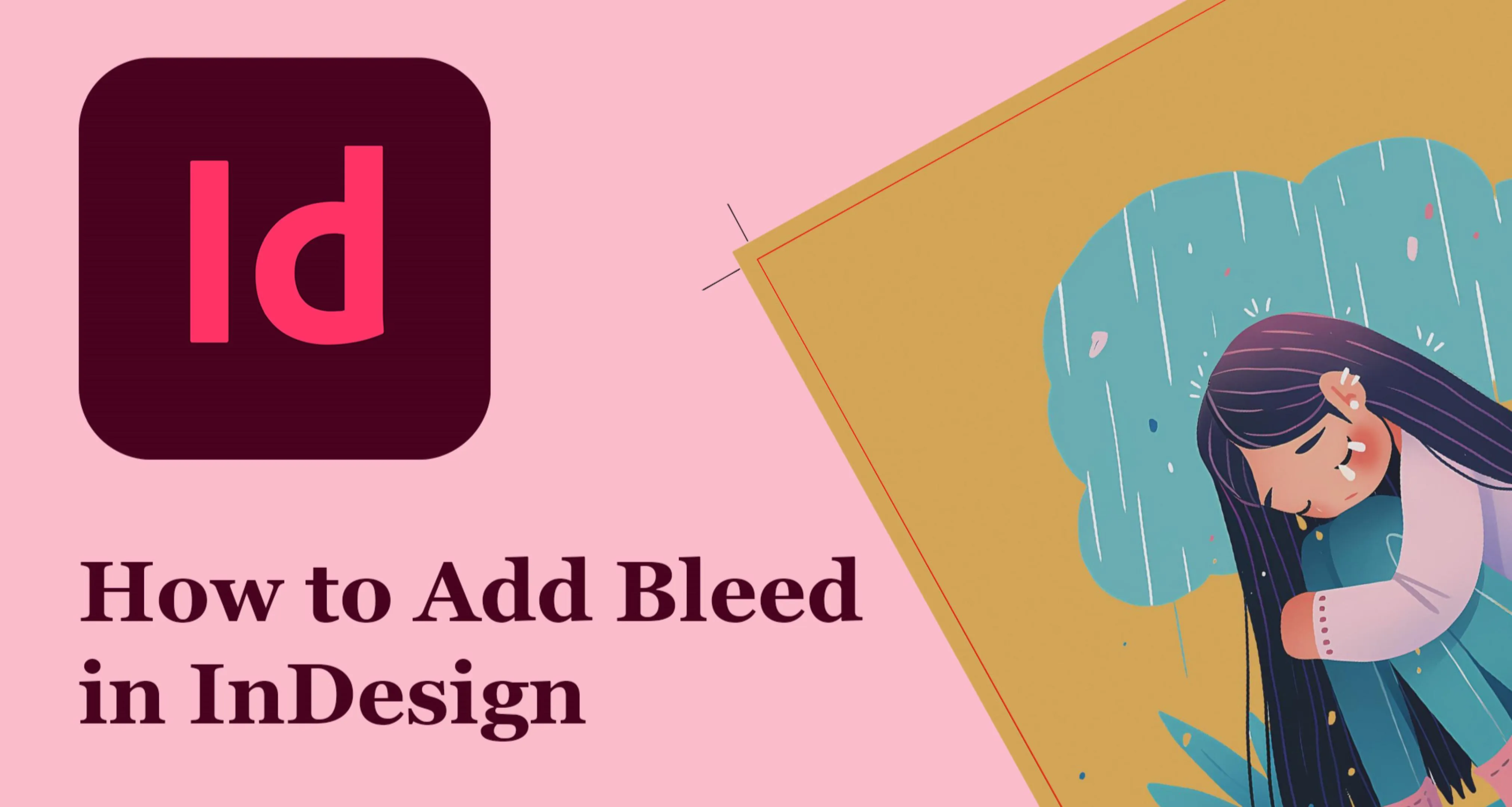
Hold down the Ctrl (Windows) or Command (Mac) key and drag the corner handles of your artwork to make sure it extends all the way to the red bleed line around the page. This ensures your background or image will print edge-to-edge after trimming.
Tip: The red line outside the page edge is the bleed line. Always make sure background colors or images extend past this line.
Step 5: Save and Export Your Print File
When your layout is complete, go to File > Export (Or “Ctrl + E”).
-
Choose where you want to save your file (for example, your desktop).
-
Name your file and select “Adobe PDF (Print)” as the format.
-
Click “Save”.
Step 6: Configure PDF Export Settings
After clicking “Save”, the “Export Adobe PDF” dialog box will open. You’ll need to adjust a few settings to include your bleed and printer’s marks.
-
In the “General” tab, set “Adobe PDF Preset” to [PDF/X-4:2008] for best results.
-
In the “Marks and Bleeds” tab:
-
Under “Marks”, check “Crop Marks.”
-
Under “Bleed and Slug”, check “Use Document Bleed Settings”.
Tip: You can also manually enter 0.125 in (3mm) if you didn’t set it earlier.
Click “Export” to generate your print-ready PDF.
Step 7: Review Your Exported PDF
Locate your saved PDF file and open it in “Adobe Acrobat Reader” or another PDF viewer. Zoom in to confirm:
-
Crop marks (thin corner lines) are visible.
-
Your artwork extends slightly beyond the crop marks (the bleed area).
If both appear correctly, your file is now print-ready with proper bleed and crop marks.
✅ Final Tips
-
Always confirm your printer’s bleed requirements—some use 0.125 in (3mm), others 0.25 in (6mm).
-
Keep all important text and logos at least 0.25 in (6mm) inside the trim line to prevent them from being cut off.
-
Save your InDesign source file along with your exported PDF for future revisions.
With these steps, your artwork will print cleanly to the edge of the page—no white borders, no trimming surprises.
Ready to bring your book project to life? Contact us to explore professional printing tips, expert guidance, and affordable custom printing solutions. Whether you’re publishing a novel, children’s book, art book, or other print project, we provide high-quality printing, various finishing options, and full customization to meet your creative vision. From design to delivery, our experienced team ensures every page looks perfect and every detail shines.
Discover why publishers and self-publishers worldwide trust us for premium printing at competitive prices — your one-stop printing partner for excellence and value. Start your project today with BookPrintingChina!